
Add a device
In this article
Each GPS unit is registered only once, with the identifier it sends. Once it sends its first position, you will see it on the map.
Before you start
- You need the Administrator or Fleet manager role, or an administrator has to have given you Edit units. In that case, the unit you add is assigned to you. Without it, the section says "You do not have permission to view this section."
- It helps to have the unit's identifier at hand. It is almost always the IMEI, printed on the label or the box.
- The unit has to be set up to send its positions to the platform. The Connection assistant registers it and gives you the setup SMS. The steps are in the in-app help.
Steps
- On the map, open Settings (the gear at the top right).
- Go to Devices.
- Tap Add. New device opens.
- Under Identity, type the Name you will see in the list and on the map, for example "Pickup 12".
- If you want, fill in License plate, Group and Contact.
- Under GPS unit, type the Device ID exactly as the unit sends it. If the label has a barcode, you can also read it with Scan or Upload photo.
- If you know the Model, type it too. It is not required.
- Tap Save. You will see "Device "…" created."
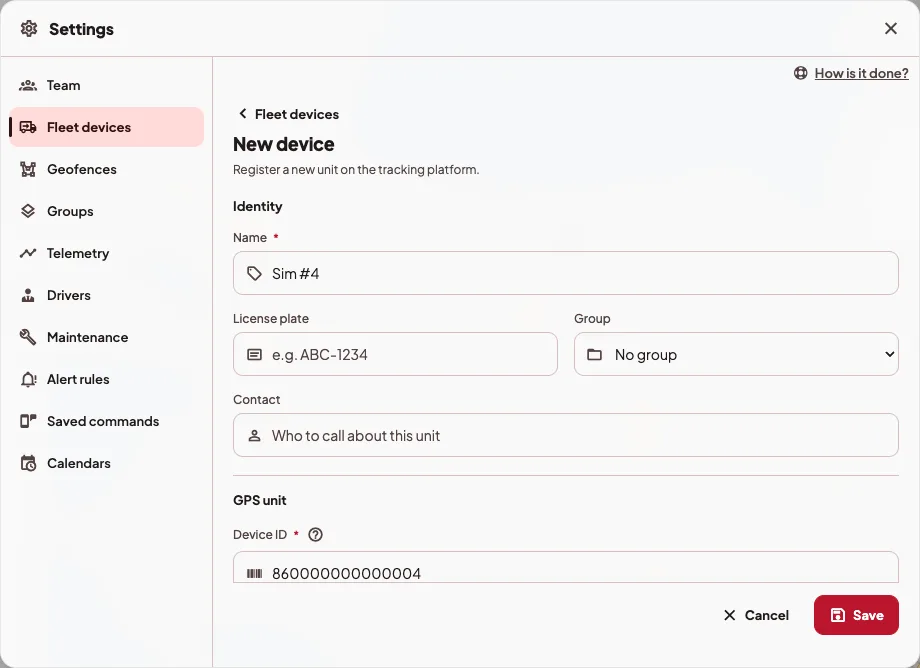
The unit will show up on the map when it sends its first position. Until then, Protocol says "No reports".
More options
Further down the same form there are collapsed sections you can open if you need them. None of them is required.
- Map icon, to pick an icon or upload your own.
- Remote setup (SMS), with the Connection assistant (server, port and the SMS for your model) and the number of the SIM inside the GPS unit, in case you will send it commands by SMS. When you edit a device that already exists, the button is called Set up connection.
- Assigned driver, Odometer & engine hours and Geofences.
When you edit a device that is already created, you also get Documents, where you can add the SOAT, the technical inspection and other expiry dates. We explain it in SOAT, technical inspection and licence expiries.
If something goes wrong
- "That identifier is already registered. Check that it's typed correctly." That ID already exists on the platform. You may have added it before under another name.
- "You've reached your plan's limit" or "You've reached the trial limit". Your organization already has all the devices its plan or the trial includes. The ones you have keep working, and the notice tells you how to add more depending on your role.
- "This device has already used its trial period, so we can't add it while your organization is on a trial." Each GPS device gets a single trial period. If that device was already in another organization while that organization was on a trial, it can't be added to another one that is also on a trial. The notice tells you how to continue depending on your role. With an active plan you can add it without any problem, and if you delete a device from your own trial and add it again, nothing blocks it either. If you think this is a mistake, write to us and we'll look into it with you.
- The device does not show up on the map. Most often, the Device ID does not match the one the unit sends. Check that they are identical, with no spaces or extra zeros. If you change the ID of a device that already exists, the app asks you to confirm in Change the IMEI?. From then on the unit gets data from the new unit and keeps the history it already had.
- "The unit's clock is … ahead" or "The unit's clock is … behind". This happens when its positions come in at the wrong time, and you can fix it with Fix time. The change applies when the unit reconnects. Until then, the sheet says "Verifying the fix (…) with new positions.". If the fix ends up on a zone other than UTC, the sheet shows it as "Time fixed: the unit reports …".
- Time adjustment is under GPS unit and starts on Default (UTC), which is right for almost every unit, the GT06 included, because they send their time in UTC. You only need to change it if you notice the unit's time comes in wrong. It is saved with the rest of the form and applies when the unit reconnects.
- "This unit's clock changed in this period: the route may show jumps." This notice shows up in the history when the range mixes positions from before and after a time change. Adjust clock takes you straight to the unit's sheet.
On your phone
Go to Management › Devices and tap Add device. The form has the same fields, and you can read the IMEI with the phone's camera.