
Create a geofence
In this article
A geofence is a zone you draw on the map to know when a unit enters or leaves it.
Before you start
- You need permission to edit geofences. Administrator and Fleet manager have it, and an administrator can give it to someone else with Edit geofences. With it, the person changes or deletes only the geofences they created.
Steps on the web
- On the map, open Settings (the gear at the top right).
- Go to Geofences and tap Add. New geofence opens.
- Type the Name. Each geofence needs its own, different from the others.
- Choose the Map color.
- Tap Draw on map.
- Click on the map to mark each corner of the zone, and double-click to close the polygon.
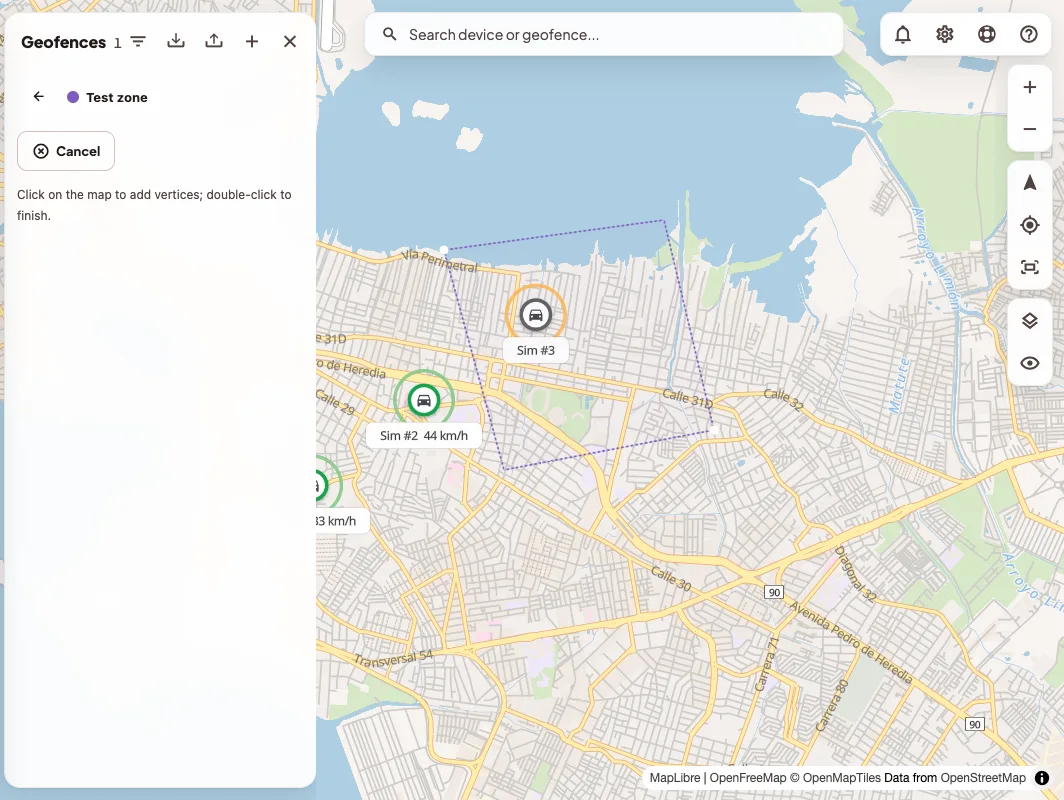
When you close the polygon, the geofence saves itself and you will see "Geofence "…" created."
If you want this zone's alerts to count only at certain times, open it after creating it and choose a Calendar in Schedule. Calendars are created in Settings › Calendars.
To change its shape later on, open it, tap Edit shape on map, drag the corners and save.
Steps on your phone
- Open Management › Geofences and tap Add.
- Choose the Type:
- If you choose Area, tap the map to mark each corner. If you make a mistake, use Undo last point.
- If you choose Point of interest, tap the map to place the point and adjust the Radius (… m).
- Type the Name, choose the Color and, if you want, a Calendar so it only alerts during those hours.
- Tap Create geofence or Create point.
Bring in geofences you already have
In the map's Geofences panel, tap Import. You can upload KML, KMZ, GeoJSON or GPX files up to 1 MB. Before creating the zones, the app shows you which are ready and which have a problem, for example "Outline crosses itself". With Export you can download them as KML (Google Earth) or GeoJSON.
Link the geofence to your units
A geofence only alerts about the units linked to it. To link a unit, follow these steps.
- Open Settings › Devices and edit the unit.
- Open Geofences.
- Choose the zone in + Add geofence….
- Tap Save geofence links.
Repeat these steps for each unit you want to link. While a unit has none, it says "No geofences linked to this device."
Get alerted when a unit enters or leaves
In your alert preferences, check that Geofence entry and Geofence exit are on.
If something goes wrong
- "Enter a name before drawing." The geofence needs a name before you start drawing it. Type it and tap Draw on map again.
- "A geofence with this name already exists." Each geofence needs its own name, so pick a different one.
- "The map is not ready to draw. Close the panel and try again." The map was still loading. Once it finishes, you can try again.