
Choose which alerts you get and how
In this article
Each person on the team picks their own alerts, that is, what they hear about (speeding, SOS, entering a geofence…) and whether it reaches them in the app, by email or as a push.
Steps
- Open your user menu (your photo or initials) and go to My account.
- Open Alert preferences.
- In Alert types and channels, find the alert type, for example Overspeed. You can also type it in Search alert type….
- Turn on Receive this alert.
- Choose the channels: In-app, Email or Push.
If you open the bell on the map, the gear icon at the top (Alert delivery preferences) also brings you to this screen.
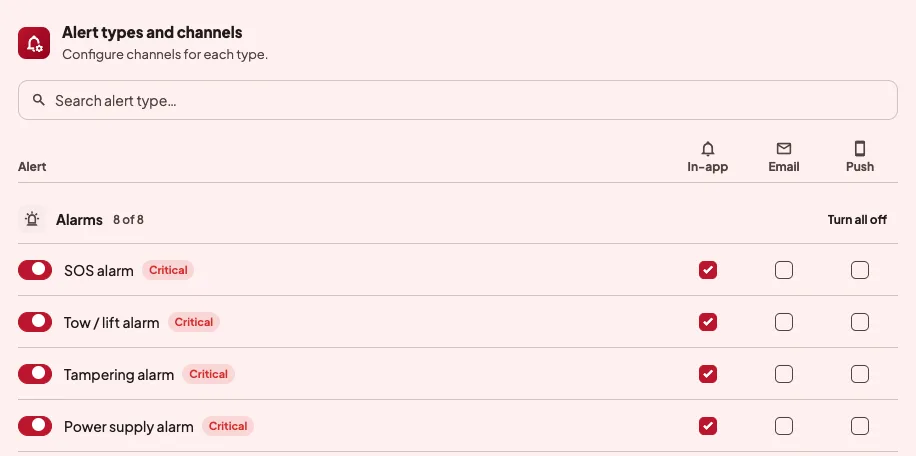
Alerts are grouped into Alarms, Status & movement, Geofences and Operation. Turn all on and Turn all off change a whole group, and if you make a mistake you can go back with Undo.
Send a copy to another email
In Alert email recipients, tap Add a CC email and type the address. That address gets the same alerts you have checked with Email. CC emails are yours, so no one else on the team sees or changes them.
Alerts on this browser or phone
What you choose in On this device is saved only in that browser or phone.
- Alert sound plays while you have the map open. Critical alerts repeat until you acknowledge them.
- Read alerts aloud says each alert while the app is open, for example "Unit ABC-123 is offline".
- Browser notifications reach you even with the tab closed or in the background.
Where you see alerts
Alerts in the app are under the bell at the top right of the map. The red number tells you how many you have not read.
If something goes wrong
- "Your browser is blocking notifications for this site. You can allow them in the site settings." Once you allow them in the browser settings, turn Browser notifications back on in this screen.
- "On iPhone and iPad, add Trackyfi to the Home Screen to receive them." Safari only sends notifications to apps added to the Home Screen.
- "Push unavailable". We could not register this phone for push. The other channels keep working.
- "Notifications disabled". The phone has the app's notifications turned off. Settings takes you to the phone settings to turn them on.
- Turn on notifications. The phone has not asked you yet for permission to send notifications. Tap Continue and accept the phone prompt. The app also asks the first time you create an alert rule.
On your phone
In the phone app, the same preferences are in Management › Alert channels. Anyone on the team can open them, and each person only changes their own.