
Invite someone to your team
In this article
When you invite someone, you choose their role, which sets what they can do, and the units they will see.
Before you start
- You need the Administrator role.
- You need the person's email. If they do not have one, Without email explains how to create their account.
Steps
- On the map, open Settings (the gear) and go to Team.
- Tap Invite.
- In Who, type the Email.
- In What they can do, choose a Role. Each option explains what it allows. For example:
- Administrator has full access to devices, reports, team and settings.
- Fleet manager handles the whole fleet, with devices, geofences, commands and reports.
- Dispatcher sees their devices, reports and geofences and sends them common commands, but cannot edit them.
- User sees on the map the devices assigned to them.
- In What they can see, choose the units they will see.
- With By group they see every unit in the group, including the ones added later.
- With One by one you check single units.
- Tap Send invite.
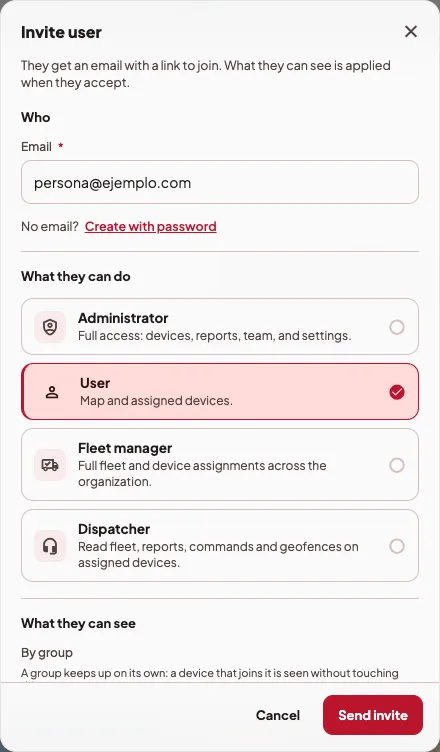
The person gets an email with a link, and the units you chose apply once they accept. In the meantime the invite shows in Pending invites, where you can Resend invite or Revoke invite.
If the person already uses the app in another organization, the invite adds this one and they keep the one they already had.
The first time they come in, the person sees a welcome with who invited them, their role and how many units they see. If they have none yet, the welcome tells them which administrator can assign them.
Without email
If the person has no email, tap Create with password in the invite form. You choose the password and give it to them. Since you are giving it to them yourself, you can turn off Send a verification email.
Change the role or the units later
In Team, open the person. In the Access section, Role changes what they can do and Device assignment changes which units they see. The Administrator and Fleet manager roles already see the whole fleet, so there is no need to assign them units.
A Fleet manager can also open Team to assign units and groups to each person. Inviting, changing roles or removing someone is still up to an Administrator.
Give someone extra permissions
If someone needs a bit more than their role allows, you do not have to change it. In Team, open the person and look for Extra permissions. The permissions are grouped under Commands, Units and geofences and Reports, and each switch explains what it allows and what it risks. These are the ones you can give:
- See commands, Send common commands and Send risky commands. To give the risky one, the organization has to have accepted the risk notice for control commands first. If it has not yet, you can open it right there with Read the risk notice and accept it.
- Create routines and saved commands, always for the person's units. A routine with a risky command also needs permission to send it.
- Edit units, to add units and edit their own, along with their drivers, maintenance and documents. Each new unit takes a slot of your plan and is assigned to whoever created it. Groups, alert rules and whatever affects the whole fleet stay with administrators and fleet managers, and the person cannot disable or delete units.
- See geofences and Edit geofences. With the second one, the person draws geofences and changes or deletes the ones they created.
- See history and reports and Send reports to outside addresses.
Some permissions need others. Turning one on also turns on what it needs, and turning one off also turns off what depends on it.
- They only apply in this organization and only to the units assigned to the person.
- Whatever their role already gives them shows as on and cannot be changed there.
- Only an administrator sees and changes this section. Managing the team, settings, the audit log and billing is not given per person.
- Every change is recorded in the Audit log, with who made it and what changed. If you remove the person from the organization, their extra permissions are deleted. If you change their role, the ones the new role already gives are removed, and so are the ones left without what they need.
If something goes wrong
- "The invitation was created, but we couldn't send the email. You can share the link yourself or try sending it again." The invite stays in Pending invites, where you can resend it, or you can share the link another way.
- "The Admin role can't be removed because this is the organization's only active admin." To take that role away, first make someone else an administrator.
- The person signs in and sees no unit. They probably have no units assigned yet. You can give them a group or single units in Device assignment.
Remove someone from the organization
In Team, open the person's actions menu and choose Remove from organization. From then on they stop seeing this organization's devices and lose the ones assigned to them here. Their account stays active, along with any other organizations they belong to. If you only want to cut their access for a while, the same menu has Disable account.