
Send a command to a unit
In this article
From Commands you can send orders to a unit's GPS device, such as cutting the engine or asking for its position.
Before you start
- Sending commands takes a permission. The administrator, the fleet manager and the dispatcher have it by default, and the dispatcher can only send them to the units assigned to them. An administrator can also give it to one person in Extra permissions, with Send common commands. If you do not have it, you will see "You don't have permission to send commands".
- Cutting the engine and the other risky commands take a separate permission. The administrator and the fleet manager have it, and an administrator can also give it to one person with Send risky commands, once the organization has accepted the risk notice. If you do not have that permission, those commands and Free SMS do not show up in your list.
- The commands you see depend on the device's model. If the unit has not reported yet, you will only see the custom command.
- The command reaches the real unit at that very moment, so it is worth checking carefully before you send it.
Steps
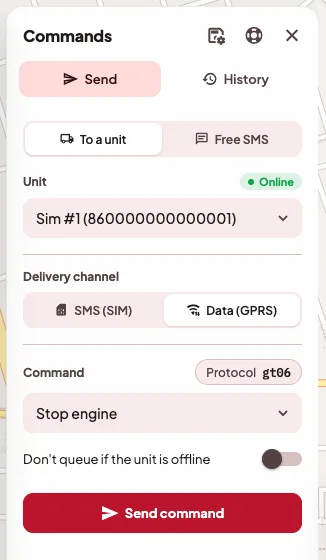
- In the map sidebar, open Commands.
- On the Send tab, keep the To a unit mode.
- In Unit, choose the device.
- In Command, choose what to send. Your Saved commands are at the top and the Predefined types below.
- If the command needs parameters, fill them in.
- Tap Send. If it is a risky command, the app asks you to confirm it in Send "…"?, where you can see when the unit last reported and how fast it was going.
Risky commands
Cutting the engine, controlling an output, powering off, rebooting, factory reset, firmware update, deep sleep mode, and any custom command or Free SMS are risky commands. The app is more careful with them, and this is what changes:
- It always asks you to confirm them, also when you send them from the AI assistant.
- They only go out if the unit reported recently (7 minutes at most) and is going slower than 10 km/h. If that is not the case, the command is not sent and the app explains why.
- They are not queued. If the unit is not connected, the command is not sent and you can send it again once it connects.
- A system connected with an API key cannot send them.
- Every send is recorded in the Audit log, with who sent it, to which unit, from where and how it ended.
- Before the first one, an administrator of your organization has to accept the Risk notice for control commands. If they have not done it yet, the notice appears in the panel when you try to send one, and the administrator can accept it right there with I understand the risk and accept.
The setup messages that the assistant uses to connect a device (APN, server, interval) are not risky commands, so they go out even when the unit has not reported a position yet.
What happens next
The screen shows the command's status:
- Sent to the unit or Sent by SMS.
- Queued until the unit connects, if the unit was offline. The unit gets it when it connects again. This only happens with commands that are not risky, and for now a queued command cannot be cancelled from the app.
- Unit responded, or No response yet.
Everything you sent stays in the History tab.
Save a command to reuse it
If you often send the same command, you can save it so you do not have to set it up each time. Creating and editing saved commands takes permission to manage them. The administrator and the fleet manager have it, and an administrator can give it to someone else with Create routines and saved commands. If you have assigned units, each command you save is for one of them, and saving a risky one also takes being able to send it.
- Open Settings › Saved commands and tap Add.
- Give it a Name, for example "Cut engine".
- Choose the Command type and, if you want, a unit. A saved command without a unit works for any of them.
By SMS
- Send via SMS sends the command as a text message. The unit has to have its GPS SIM number in Remote setup (SMS).
- Free SMS sends a text you write yourself to the SIM saved on the unit you chose. It only goes to that number, which is why there is no field to type another one. If the text is not a setup message, it counts as a risky command, which is why you only see Free SMS if you can send risky commands.
How many SMS you can send
SMS come out of an allowance of your organization that depends on your plan. Both free SMS and commands sent by SMS count.
- There is a limit per day and another per month. The day and the month follow your organization's time zone.
- There is also a limit per SIM. Each one can receive up to 10 SMS per hour, so an error that repeats itself does not use up the whole allowance on a single unit.
- When sending an SMS, the administrator sees how many the organization has used in Your organization's SMS, split into Today and This month.
- When a limit is reached, the SMS is not sent and the message tells you when you can send again, which can be at midnight, on the first day of the next month or when the next hour starts.
If something goes wrong
- "The command couldn't be sent because the unit is going …". Once the unit stops, you can send it again.
- "The command couldn't be sent because the unit hasn't reported in more than … min". Since the unit has not reported for a while, we cannot tell whether it is stopped. Once it reports again, you can send it.
- "The command couldn't be sent, the unit doesn't seem to be connected." You can send it again when the unit is online.
- "The unit's SIM number is missing". You can add it when editing the device, in Remote setup (SMS).
- No response. Some devices do not confirm every command. You can check the result on the map or in History.