
Use the AI assistant
In this article
You can ask the assistant about your fleet in your own words, for example "which units are offline?" or "who went over the speed limit today?".
Before you start
- An administrator has to have connected an AI model (see For administrators). If they have not done it yet, the assistant tells you "The assistant isn't ready yet. An administrator can set it up."
- The assistant has your same permissions, so if you do not see a unit, it does not see it either.
Steps
- On the map, tap Assistant, the button with sparkles at the top right.
- Type your question in Ask about your fleet… or tap a suggestion, such as Fleet summary for today.
- To send it, press
Enter. If you want a new line without sending, useShift+Enter.
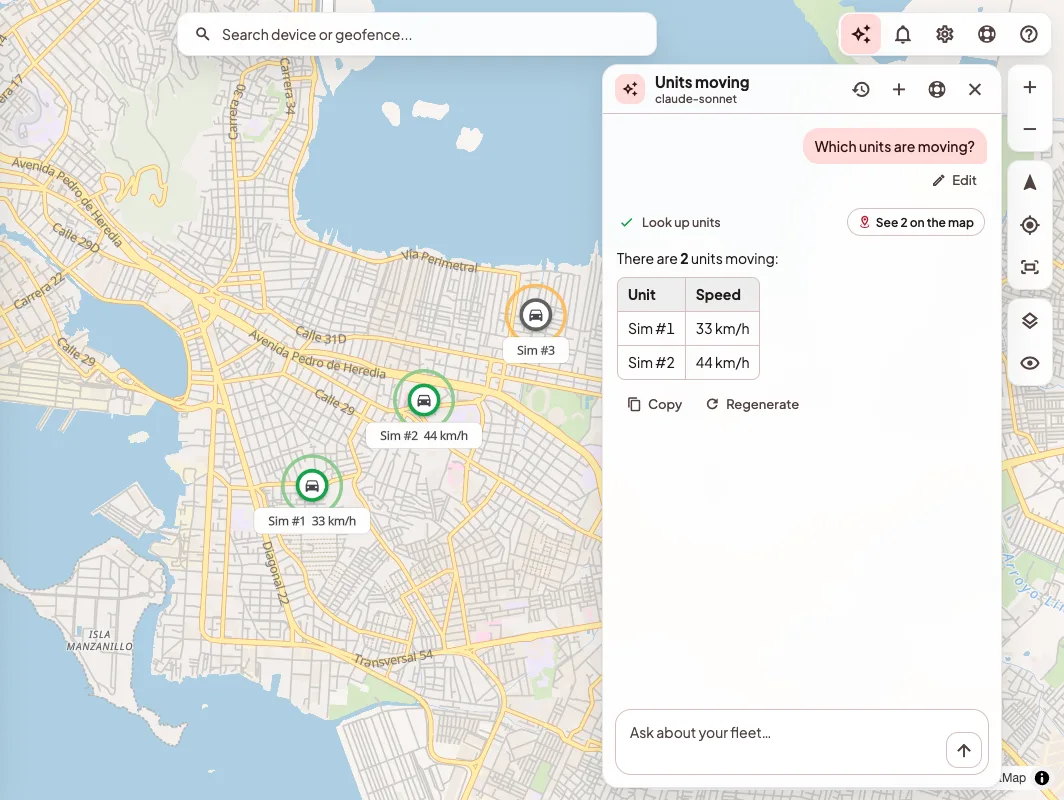
While it works, the assistant shows you each step it takes. If the answer is about units, you can tap See on the map to find them.
While it answers and after
- Stop cuts the answer.
- Regenerate asks for another answer to the same question.
- Edit lets you fix your question and ask again.
- Copy copies the answer.
- Conversations has your earlier chats. New conversation starts a fresh one.
The assistant can be wrong, so it is worth checking what matters.
When it asks you to confirm
Before it sends a command, deletes something or shares a unit's location, the assistant shows you a Confirm this action card with the exact text of what it is going to do.
- Confirm runs it, once.
- Reject discards it.
A risky command, such as cutting the engine, follows the same rules as from Commands. It is only sent if the unit reported recently and is going slower than 10 km/h, and it is not queued.
If nobody confirms the card within 10 minutes, the action expires. If what you confirmed changed in between (for example, the unit or the saved command), the action is not carried out and you see "The action changed after it was confirmed, so it wasn't carried out. You can ask for it again."
For administrators
In My account › AI:
- In-app assistant turns it on or off for the whole organization.
- In Model › Connect you choose the Provider, paste the API key and choose the model. The step by step is in the in-app help.
- Usage this month shows how many answers the assistant gave, how many queries came from AI apps and how many tokens were used.
If something goes wrong
- "Your plan does not include the assistant." or "Your organization turned the assistant off." Whoever manages your organization can look into it with you.
- "The model is busy right now. Try again in a moment."
- "The question needed too many steps. You can try splitting it into shorter questions." It usually works to ask about one unit or one day at a time.
On your phone
In the phone app, the assistant is in Management › Assistant.