
Connect Claude or ChatGPT to your fleet
In this article
You can query your fleet from the AI app you already use: Claude, ChatGPT, Claude Code, VS Code or Cursor.
Each person connects with their own account, and the AI app sees only what that person sees.
Before you start
- An administrator has to turn on External AI apps in My account › AI.
- Your plan has to include AI apps.
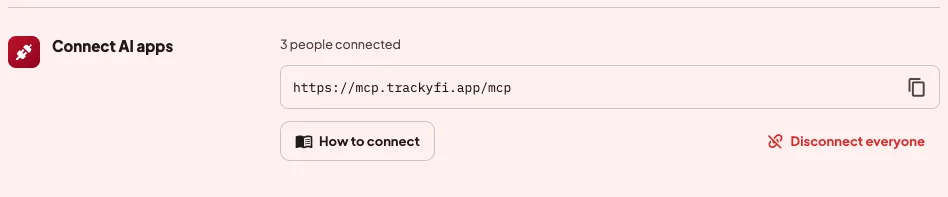
- You will need the MCP server URL, which is in My account › AI › Connect AI apps. You can copy it with Copy URL.
Claude
- In Claude, open "Connectors" and choose "Add custom connector".
- Paste the server URL.
- Sign in with your app account. Review the permissions it asks for and accept.
ChatGPT
- In ChatGPT's settings, turn on developer mode.
- In "Apps & Connectors", choose "Create" and paste the URL.
- Sign in with your app account.
Claude Code
- Copy the command with Copy command and run it in your terminal.
- Sign in when asked.
VS Code and Cursor
- Add an MCP server of type HTTP.
- Paste the server URL.
- Sign in with your app account.
The same guide is inside the app, under How to connect.
Confirm commands and changes
If you ask your AI app to send a command, delete something or share a location, the action waits for a person to confirm it. You get a notification with a link to Confirm this action, where you tap Confirm or Reject. The card says which app asked, for example “Requested by Claude”. If nobody confirms it within 10 minutes, the action expires. Risky commands, such as cutting the engine, follow the same rules as when you send them from Commands.
The administrator can turn on Confirm from the external app so actions can be confirmed inside Claude or ChatGPT. It comes off, and while it stays off, actions are only confirmed in the app.
For administrators
In My account › AI:
- External AI apps turns the connection on or off for the whole organization.
- Change the configuration lets AI apps create or change units, geofences, groups and rules.
- Send commands to units lets them send commands, always with a person's confirmation.
- Disconnect everyone cuts every connected app, and each person will have to authorize theirs again.
If something goes wrong
- The AI app finds no tools to change things. The administrator probably has Change the configuration or Send commands to units turned off, and can turn them on in My account › AI.
- You belong to several organizations. The AI app asks which one you want to work with.