
See the route of a day
In this article
History draws a unit's route on the map for the dates you pick, with its stops and its speed.
Before you start
- Your role has to include access to reports. If it does not, you will not see History in the sidebar. An administrator can give you that permission.
Steps
- In the map sidebar, open History.
- In Device, choose the unit.
- In Date range, choose a quick range such as Today, Yesterday or This week. If you want a specific day, use Custom.
- Tap Show history. The route is drawn on the map, with one marker where it starts and another where it ends.
- Tap Play to watch the route move forward. The speed button next to it (×1) changes the pace each time you tap it, from ×0.5 to ×8. You can also drag the bar to jump to another moment.
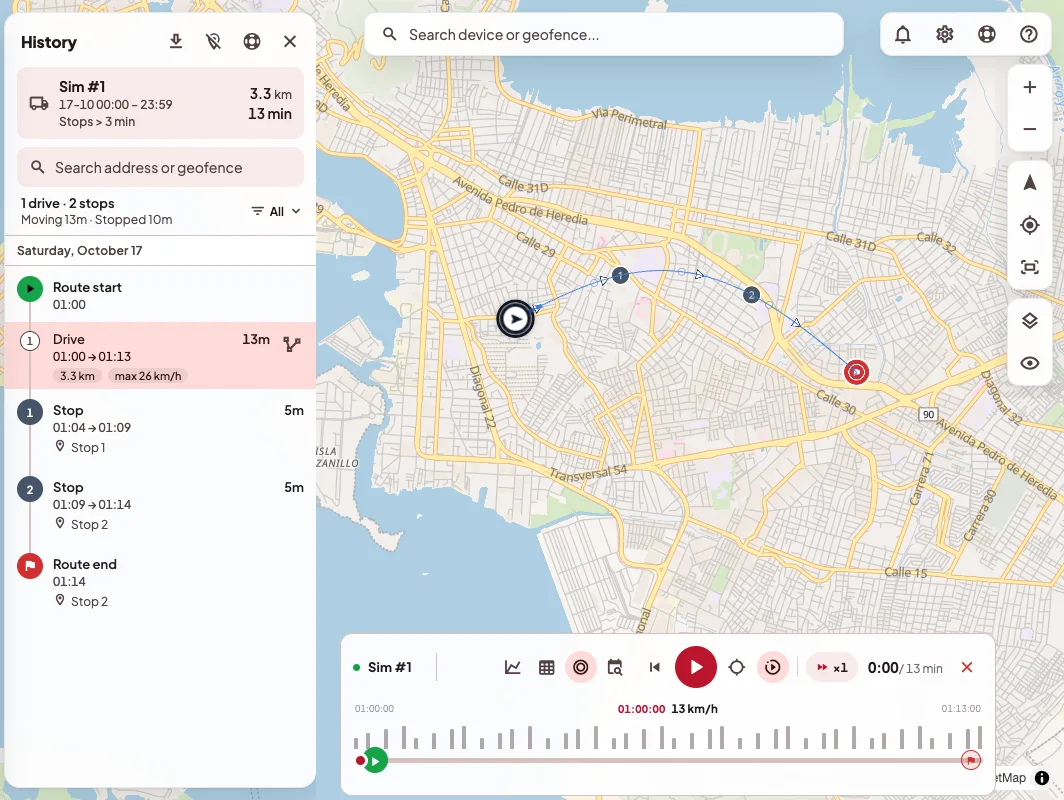
With the route loaded
- The side panel shows the list of trips, stops and geofence entries or exits. You can filter it in Event type (Stops, Drives or Geofences) or look for an address in Search address or geofence. If you tap a row, playback jumps to that moment, and on a trip View this trip on the map leaves only that stretch in view.
- Show stops on map marks long stops, and you choose from how long a stop counts. If it lasts less, it does not split the trip: it stays inside the drive.
- With Skip stops, playback does not wait through the idle time between one trip and the next.
- Expand position data table opens the positions table, with the time, address, speed, ignition and other data for each one.
- Show route points draws each GPS point on the line.
- If you want to see several units at once, switch the mode from One unit to Fleet. You can pick up to 8.
To see another unit or other dates, tap Change unit or dates. When you are done, Close history removes the route from the map.
If something goes wrong
- "No positions for this range." The unit did not report on those dates. You can try a wider range or check that the unit was on.
- "… impossible GPS jumps discarded". The app removed points that could not be real, for example a jump of hundreds of kilometers in one second. What you see on the map is still the real route.
- "No trips or stops in this range". The route is still drawn, but no movement was long enough to count as a trip or a stop. You can try a wider range or a lower stop threshold.
On your phone
Open the Reports tab and tap History, or tap History on the unit's sheet from the map. There you have the map and playback. The speed chart, for now, is only on the web.