
Generate and download a report
In this article
To build a report you pick the report type, the unit and the dates. Then you can download it as Excel, PDF or CSV.
Before you start
- Your role has to include access to reports. If it does not, you will not see Reports in the sidebar, and if you arrive through a link you will see "Reports not available".
- You can query up to the last 3 months.
Steps
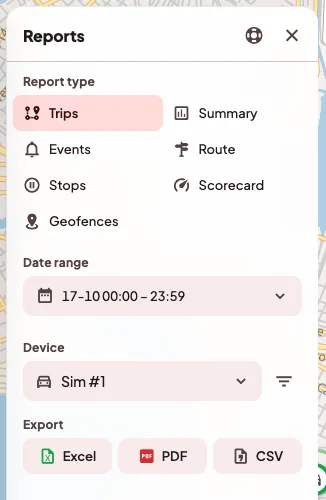
- In the map sidebar, open Reports.
- In Report type, choose the one you need.
- Trips shows each trip with its start, end, distance and duration.
- Summary gives the period totals per unit.
- Events gathers the alarms and alerts the units sent.
- Route lists every GPS position.
- Stops tells you where and for how long each unit was stopped.
- Scorecard rates the driving based on harsh braking, speeding and alarms.
- Geofences shows the entries into and exits from each zone.
- Choose the device, or All devices (within your access).
- In Date range, choose a quick range or set From and To.
- Tap Generate.
- In Export, choose Excel, PDF or CSV. The Route report also downloads as KML (Google Earth), GPX and GeoJSON.
Even if the screen shows a single page, the file has every row in the range, with your organization's name and color.
If something goes wrong
- "No trips found for this period". The unit may not have moved on those dates, or its movements were so short that they do not count as a trip. You can try a wider range.
- "The date range isn't valid. It can go back up to 3 months, with no future dates, and the start has to come before the end." Check that From comes before To, and that no date is in the future or more than 3 months back.
- "Could not load report". The tracking service did not respond in time. You can tap Retry in a moment.
On your phone
Open the Reports tab. The types are the same, except that the route is called History, and the file is saved on the phone. If you see "Saving files is not available on this device.", you can download it from the web.